On this page
Key takeaways
- Sales Navigator has no built-in CSV or Excel export. You need to copy by hand or use an export tool.
- Every search shows at most 2,500 leads or 1,000 accounts, so split bigger searches before you export.
- Scrapigator exports 22 columns per lead to CSV, JSON, Google Sheets or a webhook, from your own browser at 2 to 15 seconds per 25 results.
- Exports contain no emails or phone numbers. Enrich the file afterwards if your CRM needs them.
- LinkedIn's User Agreement prohibits scraping extensions. Pacing lowers the risk; it does not remove it.
Can you export Sales Navigator to CSV?
Not directly. LinkedIn Sales Navigator has no button that downloads a search as CSV or Excel. You can copy results by hand, save them to a lead list that stays inside LinkedIn, or use a browser extension that reads the result pages and builds the file for you.
| Method | Good for | Practical ceiling | Drawback |
|---|---|---|---|
| Copy and paste | A dozen leads | One page at a time | Slow, loses columns, error-prone |
| Save to a lead list | Tracking leads inside LinkedIn | No file at all | Lists stay in Sales Navigator |
| Export extension | Whole searches, repeat exports | 2,500 leads / 1,000 accounts per search | Against LinkedIn's User Agreement; account risk |
The full workflow
Exporting is one step in a longer chain. Teams that get clean data into their CRM usually follow the same order:
- 01
Search
Set filters in Sales Navigator
- 02
Split
Keep each part under 2,500
- 03
Export
One CSV per part
- 04
Clean
Remove duplicates
- 05
Enrich
Add emails if needed
- 06
Import
Map columns to the CRM
The rest of this guide follows those steps. If you only need a spreadsheet for research, stop after Clean.
Know the search limits first
Sales Navigator shows at most 2,500 leads per search (100 pages of 25 results) and 1,000 accounts (40 pages). No export tool can get past that, because the extra results are never shown. Split larger searches with filters until each part is under the limit.
Worked example: splitting a large search
Say a search for VP Sales in Europe at companies with 51-500 employees shows 7,400 results. Only the first 2,500 can be exported. Adding a geography filter splits it into parts that each fit (illustrative numbers):
| Part | Extra filter | Results | Exportable |
|---|---|---|---|
| 1 | United Kingdom and Ireland | 2,100 | All |
| 2 | DACH | 1,900 | All |
| 3 | France, Benelux | 1,800 | All |
| 4 | Nordics, Southern Europe | 1,600 | All |
- By geography: the cleanest split, because each lead has exactly one location, so parts never overlap.
- By company headcount: 11-50, 51-200, 201-500 and so on. Good for account searches.
- By seniority or function: useful when one title filter returns far more than 2,500 people.
Step by step: export a search with Scrapigator
- 1
Create a free Scrapigator account
Sign up at scrapigator.com. The free plan exports 100 rows a month, enough to test the whole flow on a real search before you pay anything.
- 2
Install and connect the extension
Add the Scrapigator extension to Chrome, open it and choose Connect account. You approve the connection on scrapigator.com, so you never copy or paste an API key.
- 3
Run your Sales Navigator search
Open a lead or account search in Sales Navigator and set your filters as usual: job title, geography, company headcount, industry, seniority.
- 4
Choose what to export and press Start
Pick a page range or All available results, optionally name the list and turn on Only new, then press Start export. The extension paces itself at 2 to 15 seconds per 25 results, with a 30-60 second break every 8-15 pages and a longer one every 40-70 pages.
- 5
Download the CSV
When the run finishes, download the CSV (or JSON) from the extension or your dashboard, or send it to a Google Sheet or a webhook. Every row has the same named columns.
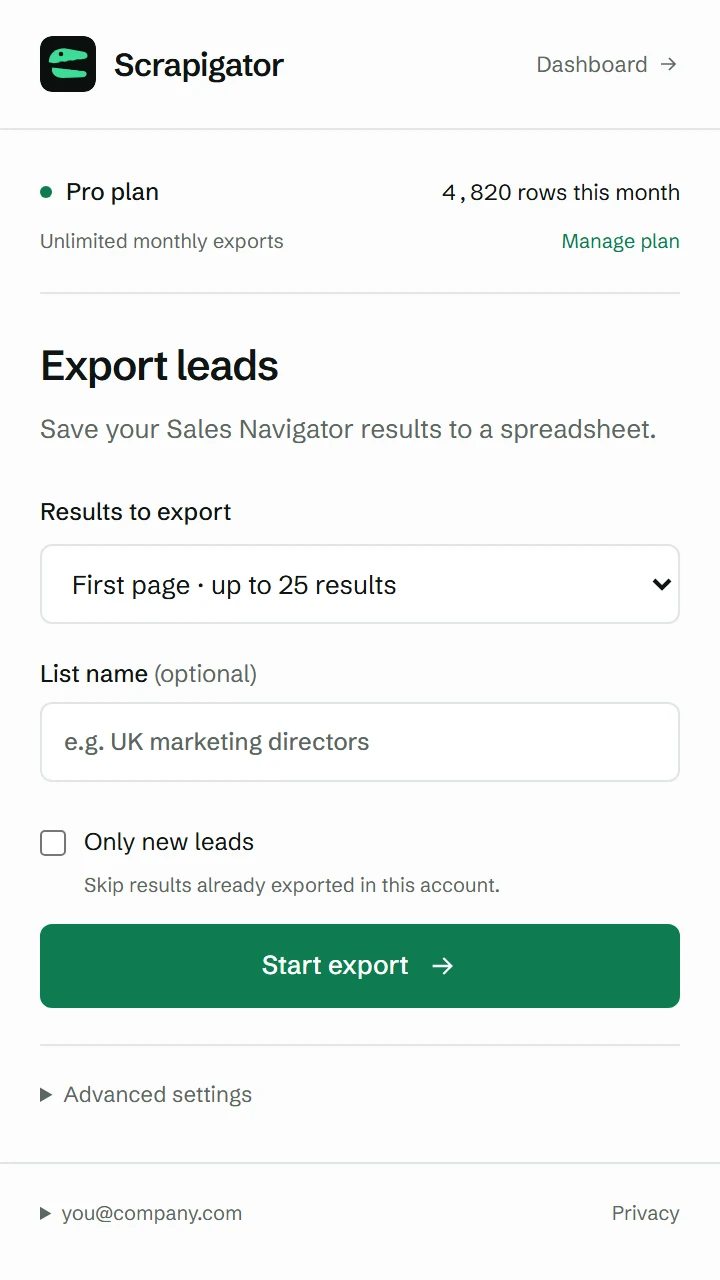
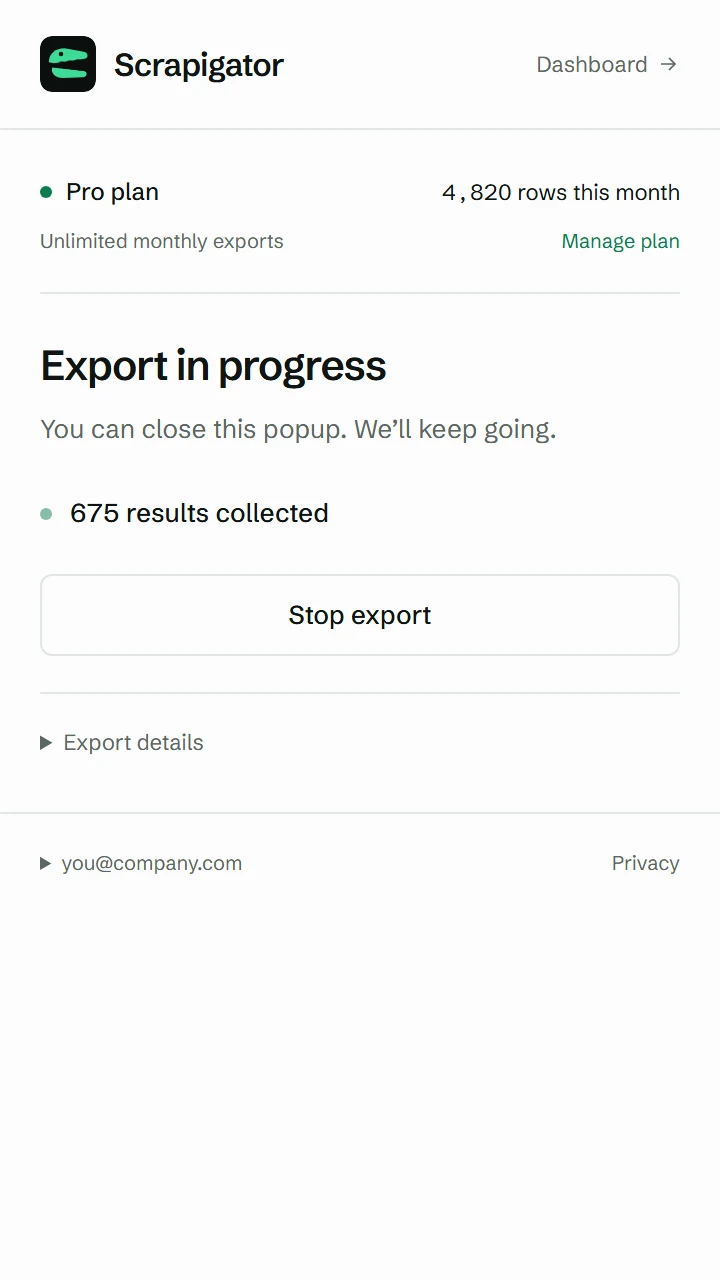
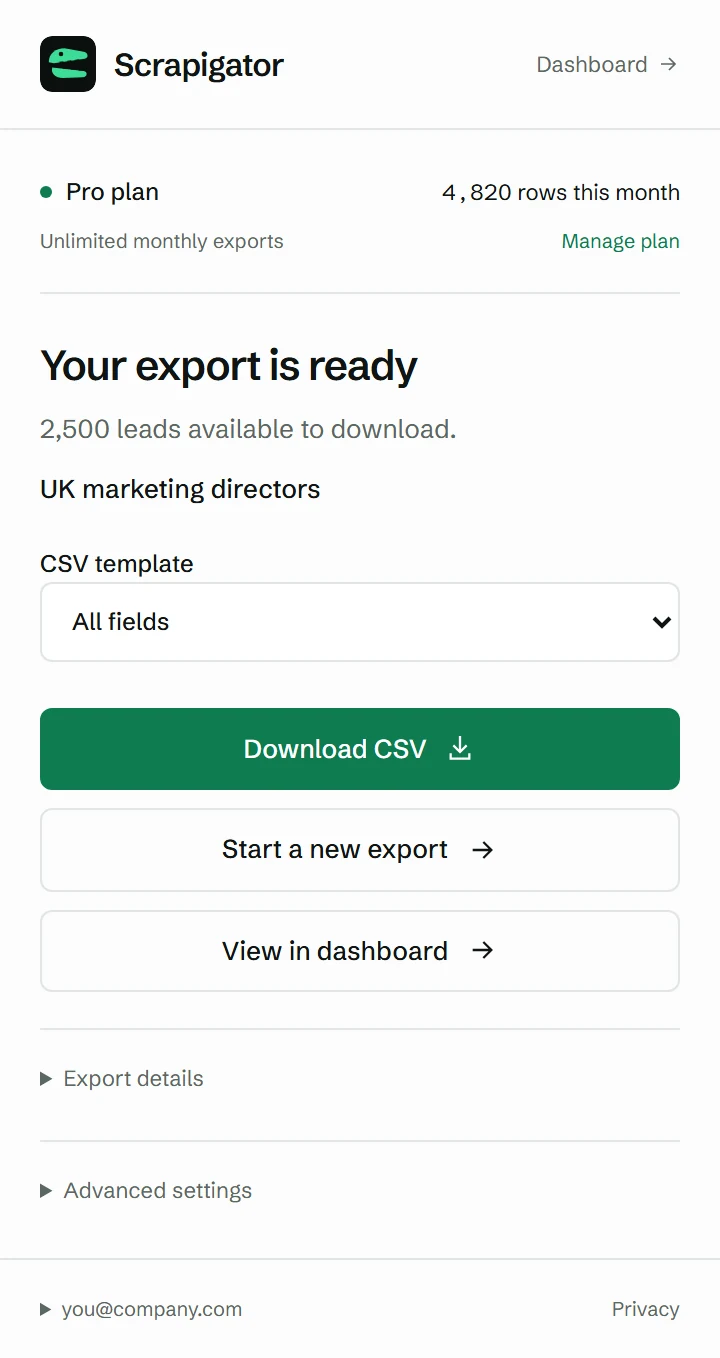
Screenshots use sample data.
Avoid duplicates across exports
Overlapping searches return some of the same people. Turn on Only new when you start an export and Scrapigator skips anyone you have already exported, then tells you how many it skipped. That is the easiest way to avoid duplicates. If you combine older files by hand, match people on the lead ID at the start of the salesNavUrl column (the part before the first comma). The same person can show up with two different profileUrl values, so that column is not a safe match.
What is in the file
A lead export has 22 columns and an account export has 10. Column names are the same in every file, so a template, formula or CRM mapping you set up once keeps working.
| Group | Lead columns |
|---|---|
| Person | firstName, lastName, fullName, title, seniority, location, degree, premium, openLink |
| Company | company, companyId, companyUrl, companyIndustry, companyLocation |
| Tenure | roleStartDate, timeInRole, timeInCompany, previousTitle, previousCompany |
| Text and links | summary, salesNavUrl, profileUrl |
Account exports carry companyId, name, industry, employeeRange, employeeMin, employeeMax, employees, description, salesNavUrl, companyUrl. Cells that begin with =, +, - or @ are escaped, so text from a profile can never run as a spreadsheet formula. See examples on the column reference.
Open the CSV in Excel, Google Sheets or a CRM
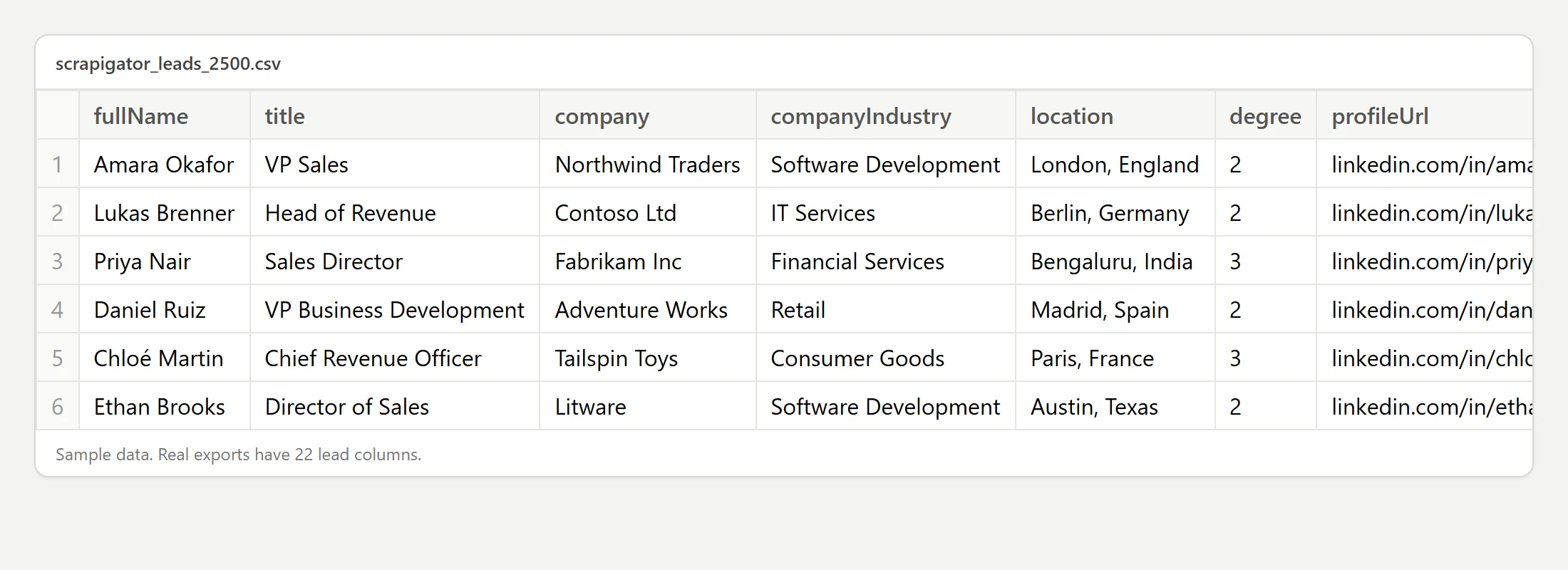
- Excel: double-click the file. It is UTF-8 with a byte-order mark, so accents display correctly. If an older Excel garbles them, use Data, then From Text/CSV, and choose UTF-8 (65001).
- Google Sheets: File, then Import, then Upload, or send the export straight to a Google Sheet from your Scrapigator dashboard.
- CRM: HubSpot, Salesforce, Pipedrive and Clay all import CSV. Map the columns as below.
Column mapping for a CRM import
| Scrapigator column | Typical CRM field |
|---|---|
| firstName / lastName | First name / Last name |
| title | Job title |
| company | Company name |
| location | City or region |
| profileUrl | LinkedIn URL (custom field if needed) |
| salesNavUrl | Sales Navigator URL (custom field) |
Pre-export checklist
- The search shows fewer than 2,500 leads (or 1,000 accounts), or you are on Pro and want automatic splitting.
- Filters are final and the result count is what you expect before you press Start.
- Only new is on if you have exported overlapping searches before.
- The list name says what the search is, e.g. "UK marketing directors Q4".
- You know where the file is going (spreadsheet, enrichment, CRM) and which columns that tool needs.
- You have read the risk section below and accept it for this LinkedIn account.
Common mistakes
- Exporting a 20,000-result search as is. You get 2,500 rows and miss the rest. Split first.
- Merging files without deduplicating. Overlapping searches create duplicate contacts in your CRM.
- Importing straight into a CRM without emails. Rows are skipped or fail. Enrich first.
- Running exports back to back all day. More volume means more risk. Spread large jobs across days.
Troubleshooting
| Symptom | Cause | Fix |
|---|---|---|
| Export stopped early | Daily safety limit reached (10,000 rows per browser by default) | Continue tomorrow; the limit is set in the extension (1 to 10,000 rows a day) |
| Export is waiting | LinkedIn asked it to slow down | Nothing. It waits before trying again, and backs off further if it keeps happening. Rows already collected are kept |
| Fewer rows than the search count | Search is over 2,500 leads / 1,000 accounts | Split the search, or use All available results on Pro |
| Accents look wrong in an older Excel | That Excel ignored the UTF-8 marker | Data, From Text/CSV, UTF-8 |
| Stopped with "paused for 2 hours" | LinkedIn blocked a request or showed a login or checkpoint page | Open LinkedIn, check your account, then resume after the pause |
The risk, plainly
Questions
Can you export leads from Sales Navigator without an extension?
Not as a file. Sales Navigator has no button that downloads a search as CSV. You can save leads to lists or copy them by hand, but a bulk file export needs a third-party tool.
How many leads can I export from one search?
LinkedIn shows at most 2,500 leads (100 pages of 25) or 1,000 accounts (40 pages of 25) per search. To export more, split the search with extra filters such as region or company size and export each part. On Pro, Scrapigator tries to split a large search for you automatically.
Does the CSV include email addresses or phone numbers?
No. Sales Navigator search results do not show contact details, and Scrapigator only exports what the results page shows. Run the CSV through an enrichment tool such as Clay or Apollo if you need emails.
Can I export an account search, not just leads?
Yes. Account searches export 10 columns per company, including name, industry, employee range, description and the Sales Navigator and LinkedIn company URLs.
Can I export a saved lead list?
Yes. Open the saved list in Sales Navigator and start an export from the extension; it exports the list's members. Search splitting does not apply to lists, because splitting cannot change who is on a list.
Will the CSV open correctly in Excel?
Yes. The file is UTF-8 with a byte-order mark, so current Excel opens it correctly with a double-click, accents included. If an older Excel or Excel for Mac shows garbled characters, import it with Data, then From Text/CSV, and choose UTF-8. Google Sheets reads it as is.
Is exporting Sales Navigator data allowed?
LinkedIn's User Agreement prohibits extensions that scrape or copy its services, and LinkedIn can restrict accounts it believes are automated. Pacing and daily caps reduce how machine-like an export looks, but no tool can make it risk-free.
Export your next Sales Navigator search
100 rows a month free. Pro is $8/month with unlimited exports and a 7-day money-back guarantee.