On this page
Key takeaways
- One lead search shows at most 2,500 results (100 pages of 25). One account search shows at most 1,000 (40 pages of 25).
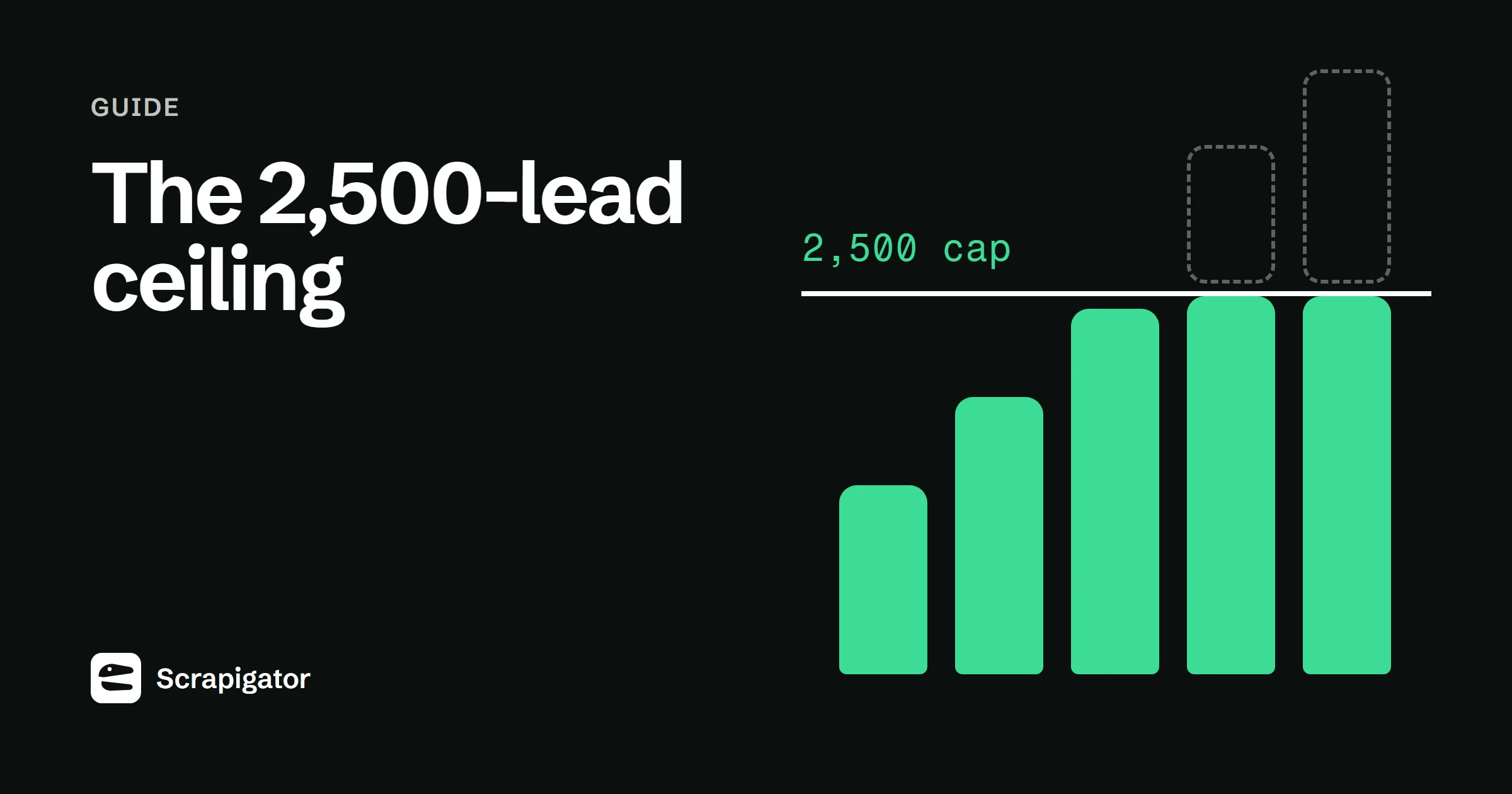
- The result counter can say 18,000, but you can only ever see and export the first 2,500.
- To get everyone, split the search into smaller searches that each fit under the cap. Region is usually the cleanest split.
- Turn on Only new when you export the parts, so people who appear twice are exported once.
- On Pro, Scrapigator tries to do the splitting for you when you choose All available results.
What is the Sales Navigator search limit?
Sales Navigator shows at most 2,500 leads or 1,000 accounts for any one search, no matter how many results the counter reports. Results come 25 to a page, and the pages stop at 100 for leads and 40 for accounts. Anything past that is never displayed, so no person or tool can reach it.
| Search type | Results per page | Pages shown | Most you can see |
|---|---|---|---|
| Lead search | 25 | 100 | 2,500 |
| Account search | 25 | 40 | 1,000 |
Think of it like a shop window. The counter tells you how much stock is in the back. The window only fits 2,500 items, and that is all you get to pick from.
How to spot that you have hit it
- The result count at the top of the search is above 2,500 (leads) or 1,000 (accounts).
- Paging through, the results stop at page 100 (leads) or page 40 (accounts).
- An export finishes with fewer rows than the search said it found.
The last one is the sneaky one. The file looks complete. Nothing in it tells you that thousands of people were left out.
Why it matters when you export
Export tools read the same result pages you see. If a search reports 18,000 leads and you export it as it is, you get the first 2,500 and miss the other 15,500, with no warning in the file. Always check the count before you export, and split the search first if it is over the cap.
How to split a big search
The idea is simple: add one filter at a time that divides the results into groups that don't overlap, then export each group as its own search.
- 1
Check the result count
Look at the number at the top of your search. Under 2,500 leads (or 1,000 accounts)? You are done, export it as it is.
- 2
Add one dividing filter
Pick a filter that puts every lead into exactly one group, usually region. Run the search once per group, for example once for the UK and once for Germany.
- 3
Check each part again
Still over the cap? Split that part again with a second filter, such as company headcount. Repeat until every part fits, then check that the parts add up to the count you started with.
- 4
Save each part as its own search
Name them clearly, for example "VP Sales - DACH - 51-200", so you can export each one and come back to them later.
- 5
Export the parts with Only new turned on
That way anyone who shows up in two parts is only exported once.
Which filter to split by
| Filter | Overlap between parts | Best for |
|---|---|---|
| Region or country | None, each lead has one location | Almost every lead search; start here |
| Company headcount | None, but leads with no company size listed match no band and drop out | Account searches and mixed company sizes |
| Industry | Little | Broad searches across many sectors |
| Seniority or function | Some, people can match more than one | When one job title is the problem |
A worked example
Say you search for VP Sales in Europe at companies with 51-500 employees, and Sales Navigator reports 7,400 results. Exported as it is, you would get 2,500 and miss 4,900. Split by region instead (illustrative numbers):
| Part | Region filter | Results | Fits under 2,500? |
|---|---|---|---|
| 1 | United Kingdom and Ireland | 2,100 | Yes |
| 2 | DACH | 1,900 | Yes |
| 3 | France and Benelux | 1,800 | Yes |
| 4 | Nordics and Southern Europe | 1,600 | Yes |
Four parts add up to 7,400 results. If one part had come out at, say, 3,200, you would split just that part again by company headcount, for example 51-200 and 201-500.
Avoid duplicates when you export the parts
Splits by region or headcount don't overlap. Splits by seniority, function or job title can, because one person can match more than one group.
In Scrapigator, turn on Only new when you start each export. It skips anyone you have already exported and tells you how many it skipped. That is the easiest way to avoid duplicates. If you combine files by hand, match people on the lead ID at the start of the salesNavUrl column (the part before the first comma). The same person can appear with two different profileUrl values, so that column is not a safe match.
Let Scrapigator split it for you
On Pro, choose All available results and Scrapigator tries to split a search that is over the cap automatically, using filters such as region and company headcount. You start one export, it runs the smaller searches.
Some searches can't be split this way. When that happens, Scrapigator saves what it could collect as a partial export and lists the searches it could not finish, each with a link to open it in Sales Navigator and narrow the filters yourself. If the extension tells you before you start that a search can't be split automatically, split it by hand using the steps above.
Other limits to keep in mind
The search cap is only about what Sales Navigator displays. Two other things limit how much you should export in a day:
- LinkedIn's rules. LinkedIn's User Agreement prohibits scraping extensions, and LinkedIn can restrict accounts it believes are automated. More volume means more risk.
- Scrapigator's daily safety limit. Each browser stops at 10,000 rows a day by default. You can set it anywhere from 1 to 10,000 in the extension.
Scrapigator also paces itself at 2 to 15 seconds per 25 results, with longer breaks along the way. Read is exporting Sales Navigator safe? before you run large exports.
Before you export a split search
- Every part shows fewer than 2,500 leads (or 1,000 accounts).
- Each part is saved with a clear name.
- Only new is on, especially if you split by seniority, function or title.
- The total rows you plan to export today fit under your daily safety limit.
Ready? Follow the step-by-step Sales Navigator to CSV guide, or see pricing.
Questions
Is the 2,500 limit per search or per day?
Per search. Every lead search shows at most 100 pages of 25 results, and every account search at most 40 pages of 25. You can run as many separate searches as you like, each with its own 2,500 or 1,000 cap.
Can any export tool get more than 2,500 leads from one search?
No. Export tools read the same result pages you see in Sales Navigator. Results past page 100 are never shown, so no tool can collect them. The only way to get more is to split the search into smaller searches, by hand or automatically.
Do saved lead lists have the same limit?
Lists work differently from searches. Scrapigator exports the members of a saved list directly, and search splitting does not apply to lists because splitting cannot change who is on a list.
What is the best filter to split a search by?
Geography, in most cases. Each lead has one location, so country or region filters divide a search into parts that never overlap. Company headcount also works, but leads whose company has no size listed match no size band, so they drop out. Check that the parts add up to the original count.
Export your next Sales Navigator search
100 rows a month free. Pro is $8/month with unlimited exports and a 7-day money-back guarantee.