On this page
Key takeaways
- Account searches and saved account lists are separate surfaces.
- Use company URL or ID to join future lead exports.
- A result estimate is not proof that every matching account was exported.
What is an account-list export?
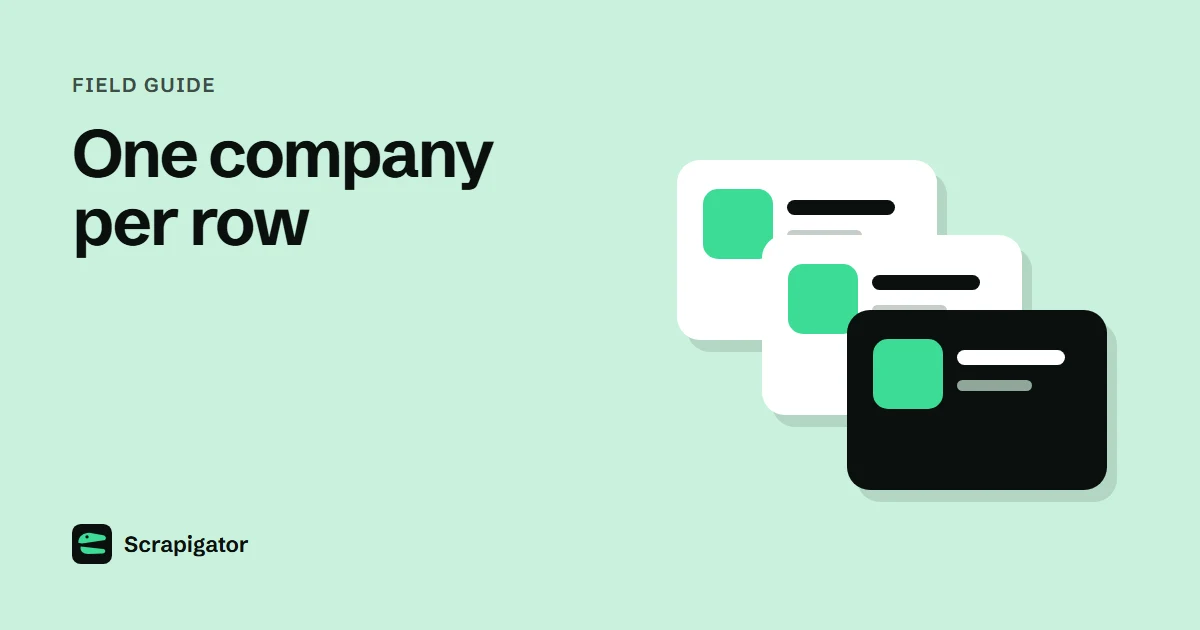
An account-list export turns selected Sales Navigator companies into one row per organization for spreadsheet or CRM use.
The source may be an account search defined by filters or a curated account list. LinkedIn's list documentation distinguishes saved accounts and custom account lists from saved searches. A search is a live query; a list is a set of accounts someone chose to retain. That difference controls whether the CSV should represent every current match or the membership of a named book of business.
Account rows have a different schema from lead rows. Fields such as company name, industry, employee range, headquarters, website, LinkedIn company URL and Sales Navigator URL are useful for account planning. Missing fields should remain blank. A scraper cannot make unavailable firmographics appear by labeling them 'estimated'.
Questions to settle before exporting
These decisions prevent a CSV that looks complete but cannot support account planning.
- Do you need every matching company in a search, or exactly the companies in a saved account list?
- Will the destination deduplicate on domain, company URL, an existing CRM Record ID or a custom key?
- Which firmographics are present on the actual result page, and which require enrichment?
- Does the search exceed the visible result window? If so, plan narrower segments and check their overlap.
Design the company table first
Create a raw tab with the source URL, export date, company name, company URL or ID and every field the exporter actually returns. Create a separate working tab for account owner, priority, next action and review status. That keeps a later refresh from overwriting your team's decisions.
For a search larger than the visible result window, split by non-overlapping criteria where possible, such as geography or employee range. Preserve the filter and segment name in each row. Account duplicates should be resolved by stable company identity, not display name alone: subsidiaries and similarly named companies make name-only matching unsafe. Our search-limit guide explains the 1,000-account visible window and why complete coverage must be checked rather than inferred.
| Field | Use | Review rule |
|---|---|---|
| companyUrl / companyId | Join and deduplicate | Prefer stable source ID |
| companyName | Readable label | Do not use alone as unique key |
| website / domain | CRM company match | Verify before replacing a CRM domain |
| sourceUrl / exportedAt | Audit trail | Keep on every batch |
Use a company record, then attach people to it
An account list is a list of organizations. A lead list contains people. If an exporter produces a person row for every employee of one company, that is not an account table. Start with one row per company and a stable company identifier or Sales Navigator account URL. Preserve the original display name, because cleaning and CRM matching can change names. Add owner, tier and next review date in a separate working table so a future export cannot erase human decisions.
For an account-based campaign, make two files: `accounts.csv` keyed by account identity and `contacts.csv` keyed by person identity with an `account_key` foreign key. This prevents five people at one company from becoming five duplicate accounts. It also lets a salesperson review an account before any contact enrichment is purchased.
| Account field | Purpose |
|---|---|
| account_key | Stable identity from company URL or ID |
| source_list | Which saved list or search supplied the company |
| company_name_raw | Name as seen on the export date |
| company_domain | Add only after independent verification |
| owner / tier / next_action | Human workflow fields kept outside raw export |
Download the account review template (CSV template).
Check coverage when the company search is large
A company search and a saved account list require different checks. For a saved list, compare exported unique account keys with the visible list membership and review any missing rows. For a search, record the filter set and the result count. Sales Navigator may expose only a limited result window; a large reported count does not mean every company is accessible in one export. Split the search into narrow, preferably non-overlapping segments such as geography or employee range, then reconcile overlaps by company key.
Suppose three segments return 750, 620 and 410 rows. The sum is 1,780 observations, not 1,780 distinct accounts. After deduplication you may have 1,650 companies. Keep the segment on each observation so you can explain why a company appeared twice and check that no segment was missed. Never remove a subsidiary merely because its name resembles a parent.
Use this checklist
- Confirm whether the source is a company search or a saved account list.
- Keep one company per account row.
- Retain source URL, filter or list name and export timestamp.
- Review overlapping segments and similarly named subsidiaries manually.
Export and check an account list
The same workflow works for a company search, with different coverage checks.
- 1
Open the intended source
In Sales Navigator, choose Account filters for a search or open the named Account List. Record its URL and displayed count.
- 2
Run a small export
Use a tool that explicitly supports account pages. In Scrapigator, open the source page and start the extension export.
- 3
Inspect the company columns
Check ten known companies for name, URL, industry, size and website. Leave missing fields blank.
- 4
Deduplicate and reconcile
Count unique company IDs or URLs and compare with the accessible source. Keep segment names if the search was split.
- 5
Import to your working system
Map the company key to the CRM or Sheet, then assign account owners and research tasks outside the raw tab.
Account export pitfalls
- Running a people-search exporter and assuming it supports account lists.
- Using company name as the only deduplication key.
- Treating an account search count as proof that all companies were accessible or exported.
The next step
Once the account table is clean, use it to choose target companies, then run a lead search within those accounts. A separate people export can be joined back through company IDs or URLs.
Continue with the export guide, the search-limit guide, the saved-search versus list explainer.
Questions
Can I export a Sales Navigator account list to CSV?
LinkedIn does not provide a native account CSV or XLS export. A third-party tool that supports saved account lists can produce a file; test the exact list page first.
Is an account search the same as an account list?
No. A search is the current result of filters; a list is a curated set of saved accounts.
How many accounts are visible in one Sales Navigator search?
The documented result window is up to 1,000 accounts per search. Split broader searches and reconcile unique companies if you need more.
What key should I use in my CRM?
Prefer an existing CRM Record ID for updates. Otherwise, use a verified unique key such as company domain or a custom source ID according to your CRM's import rules.
Does an account CSV include contacts?
An account export is one row per company. Run a separate lead search and join people to companies if you need contacts.
Export your next Sales Navigator search
500 rows a month free. Pro is $10/month with unlimited exports and a 7-day money-back guarantee.